How to Make a Spotify Canvas (Step by Step, 2026)
Turn your cover art into a seamless looping Spotify Canvas in the browser: layers, motion, text animations and a perfect 9:16 export, then upload it in Spotify for Artists.
A Spotify Canvas is the short vertical video that loops behind your track in the Spotify app: 3 to 8 seconds, 9:16, no audio. It replaces the static cover with motion, and it is one of the cheapest upgrades a release can get. Spotify has said tracks with a Canvas tend to see more shares, saves and playlist adds than the same tracks without one.
This guide builds one from nothing but your cover art in Canvas, the loop builder for Spotify Canvas inside LimePulse. Building and previewing is free, and there is nothing to install.
Step 1: Open Canvas and bring your cover
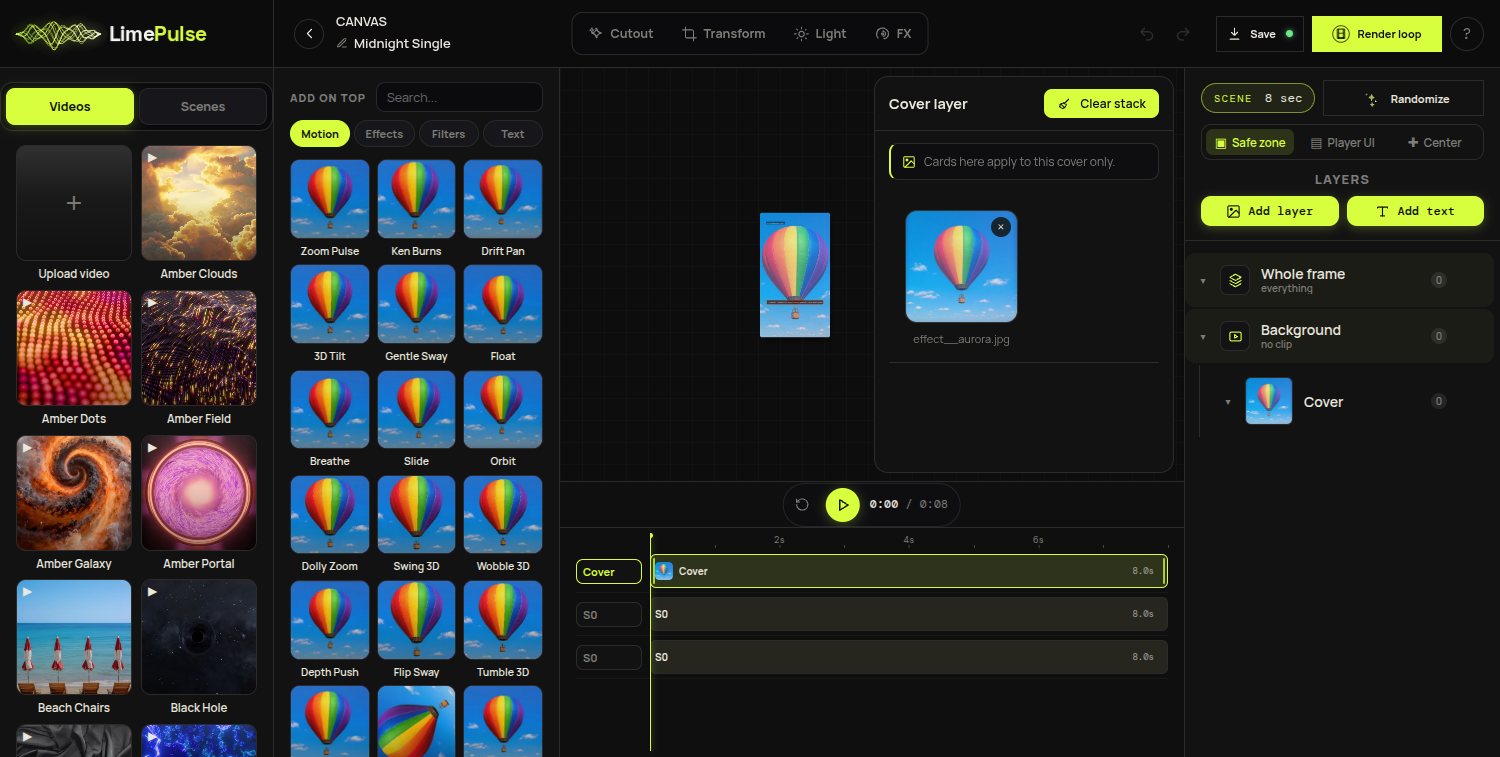
Start a new Canvas project and add your artwork to the cover layer. PNG or JPG works, and if the art has a subject worth isolating, the built-in background remover can cut it out right in the editor, no external tools.
Everything on the stage is a layer: the cover, a video or GIF backdrop behind it, stickers and text on top. Each layer sits on its own clip in the timeline, so a look can play for the whole loop or just part of it.
Step 2: Stack motion, effects and text
Cards do the animating. Motion cards move the cover (3D Tilt, Zoom Pulse, Ken Burns, Float), effect and shader cards restyle the whole frame (Liquid Flow, RGB Ghost, 3D Depth parallax), and the Text tab holds 140 text animations for a title drop or a hook lyric.
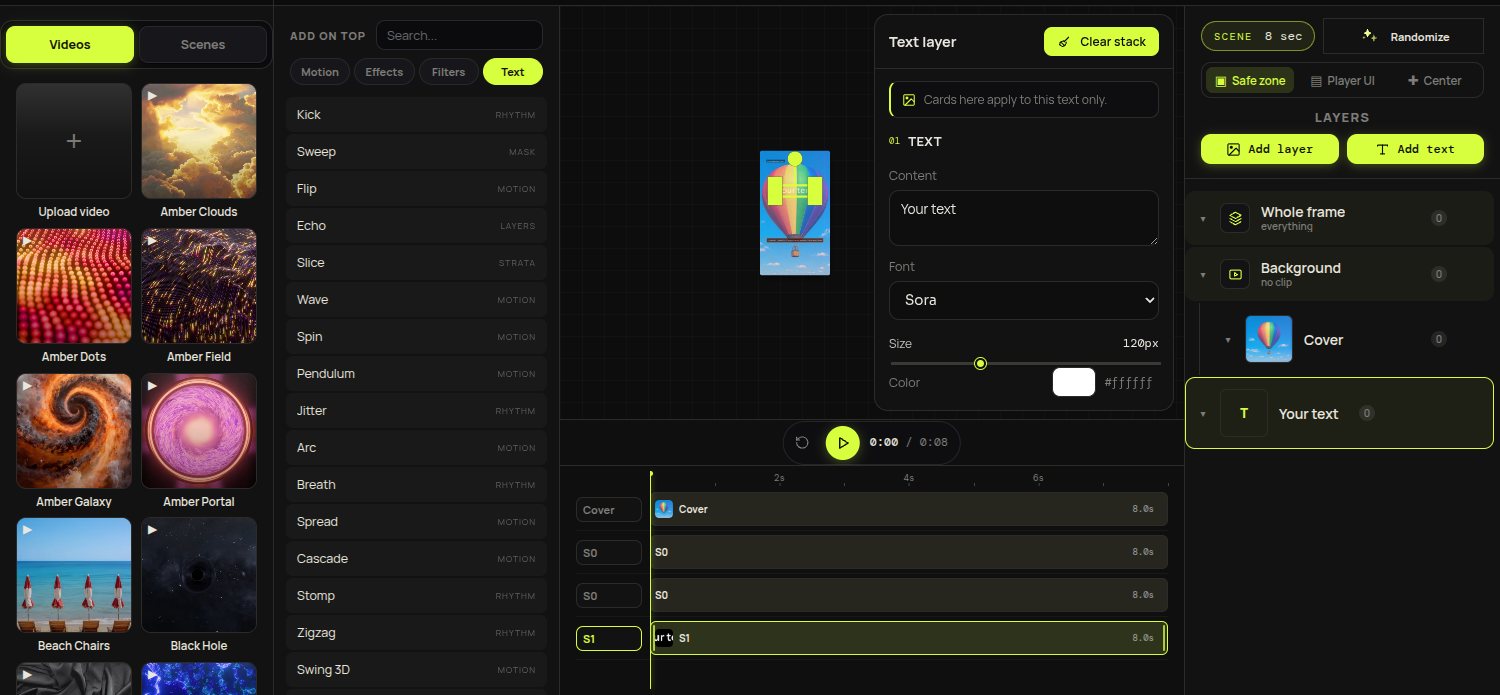
A good rule: one motion on the cover, one look on the frame, one accent. Loops that try five ideas at once read as noise at phone size. If you want a starting point without decisions, the Randomize button deals a tasteful combination and you edit from there.
Step 3: Let the studio keep the loop seamless
The whole point of a Canvas is that it loops forever without a visible seam. In Canvas every motion is a pure function of the loop, which means frame one and the last frame always match, mathematically. You never have to line anything up by hand.
Step 4: Export the loop
Hit Render loop and you get a silent 9:16 MP4 sized for Spotify, with the preview and the export matching frame for frame. The exact pixel requirements live in our Spotify Canvas specs cheat sheet if you want the numbers.
Step 5: Upload it in Spotify for Artists
- Open Spotify for Artists (web or app) and go to Music, then Upcoming or Catalog
- Pick the track, choose Add Canvas, and upload your loop
- Preview how it sits behind the player UI, then save
That is the entire workflow: cover in, loop out, upload. Build your first Canvas free, and if you also release on Apple Music, the same project converts to Apple Music motion art in one click.