Turn Your Podcast Into Video: AI That Knows Who Is Talking
Upload one episode and get a polished video podcast for YouTube and Spotify. AI speaker detection finds every voice, seats each host on an animated stage, and the visuals react to whoever is speaking.
Podcasts are audio, but the platforms that grow them are video. YouTube is now the most-used podcast app, Spotify pushes video episodes, and every clip that travels on TikTok, Reels or Shorts is a picture of someone talking. Podcast, the video podcast studio in LimePulse, closes that gap with one upload: drop in an episode, and it comes back as a video podcast where every host has a face, a name, and visuals that move when they speak.
No timeline, no keyframes, no editor to learn. The intelligence is in the studio. Here is what it does, and how to make your first episode.
One upload. Every voice, found.
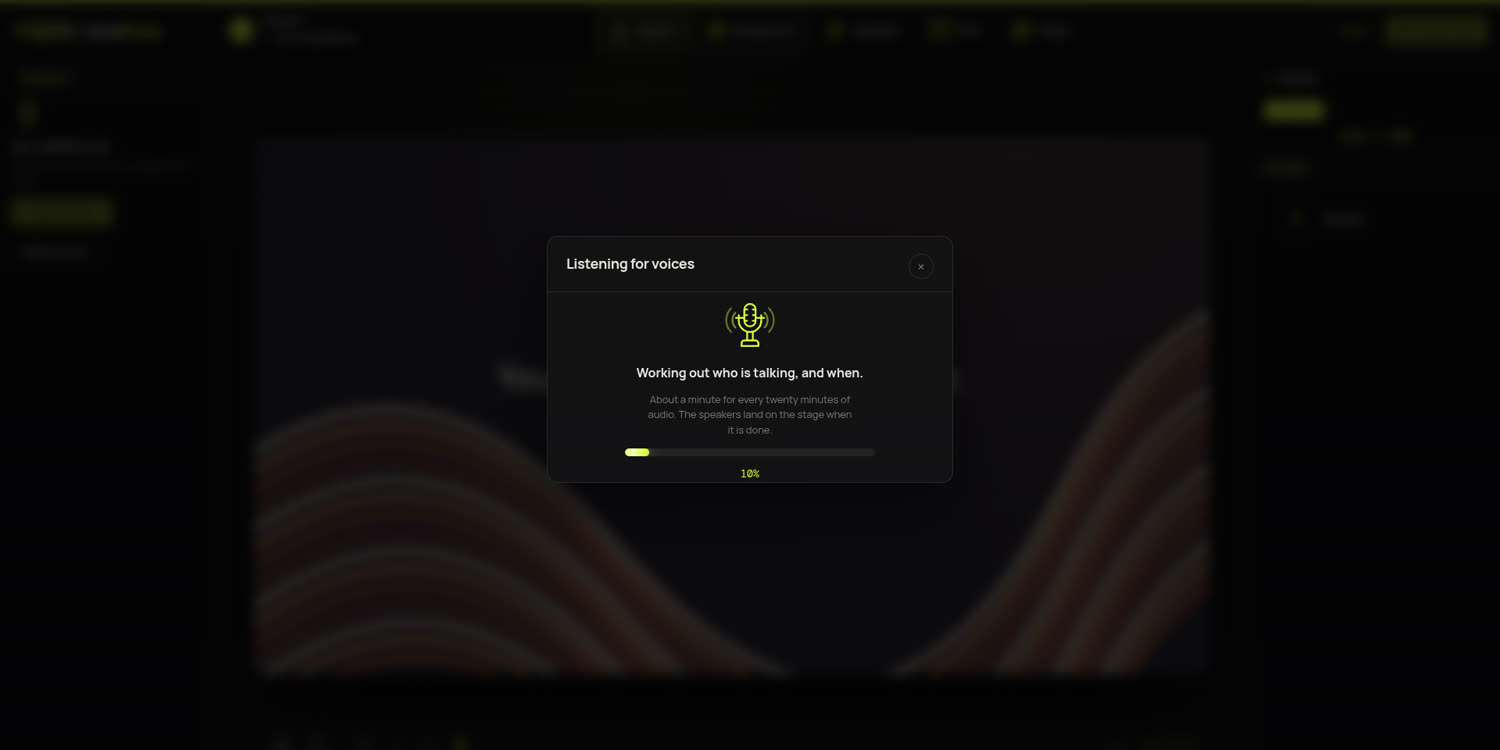
Upload the episode as it is, mixed, mono or stereo, MP3 or WAV. The studio listens to the whole recording and works out how many people are talking, when each of them starts and stops, and where two of them overlap. It does this from the voices alone. There is no script to paste, nothing to label, no timestamps to type.
An hour-long conversation takes about the time it takes to pour a coffee, and the result is precise to a fraction of a second. When it is done, the studio tells you what it found and seats the speakers on the stage for you.
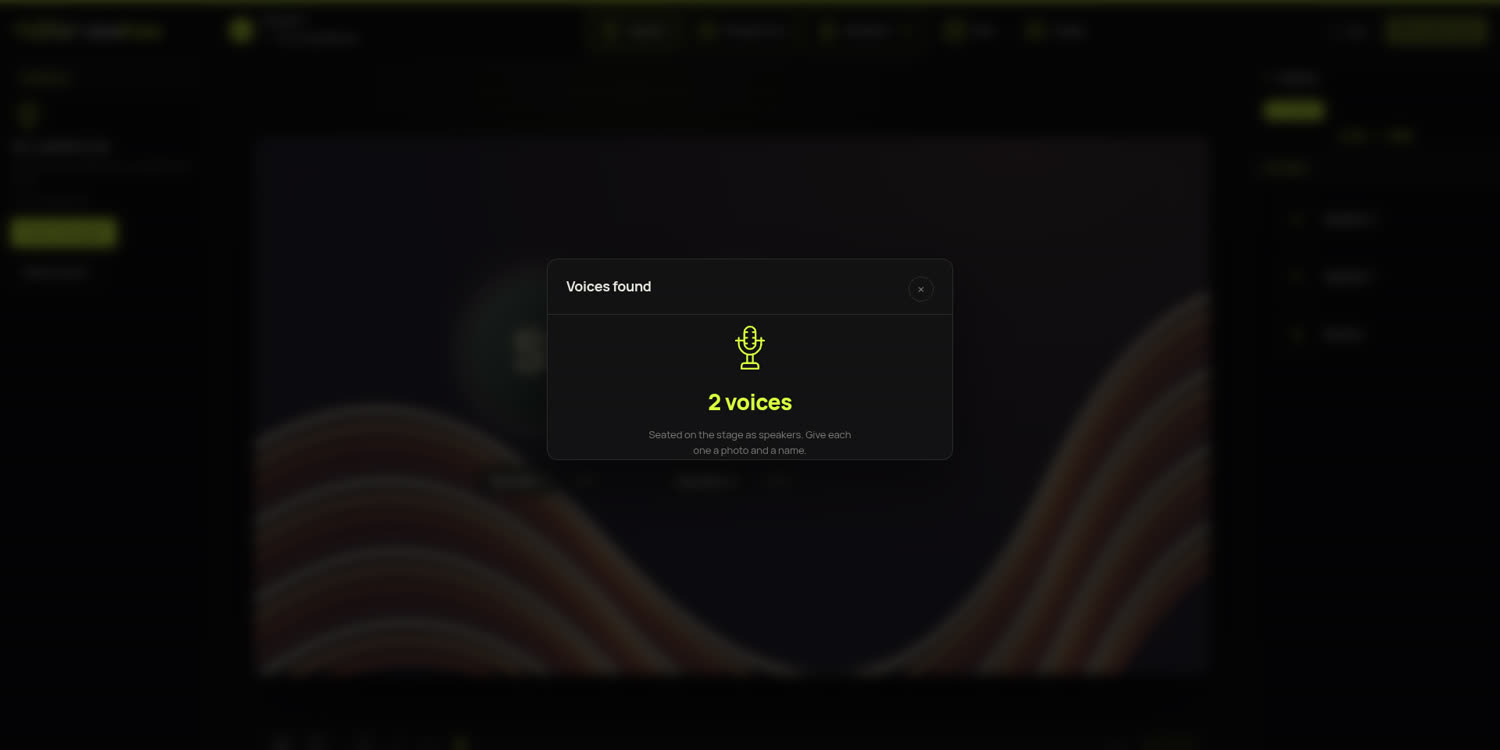
Each detected voice becomes a speaker profile, already assigned. If you have three hosts, three profiles appear. The studio supports up to three speakers per episode, which covers a host, a co-host and a guest, and it keeps every voice consistent from the first minute to the last.
Give every voice a face
Click a speaker, add a photo, type a name and a role. That is the whole setup. Then pick how the speaker comes alive: ten speaker styles, from a soft breathing halo to studio meters, a radial equalizer, a flowing waveform, or a clean frame that articulates as they talk.
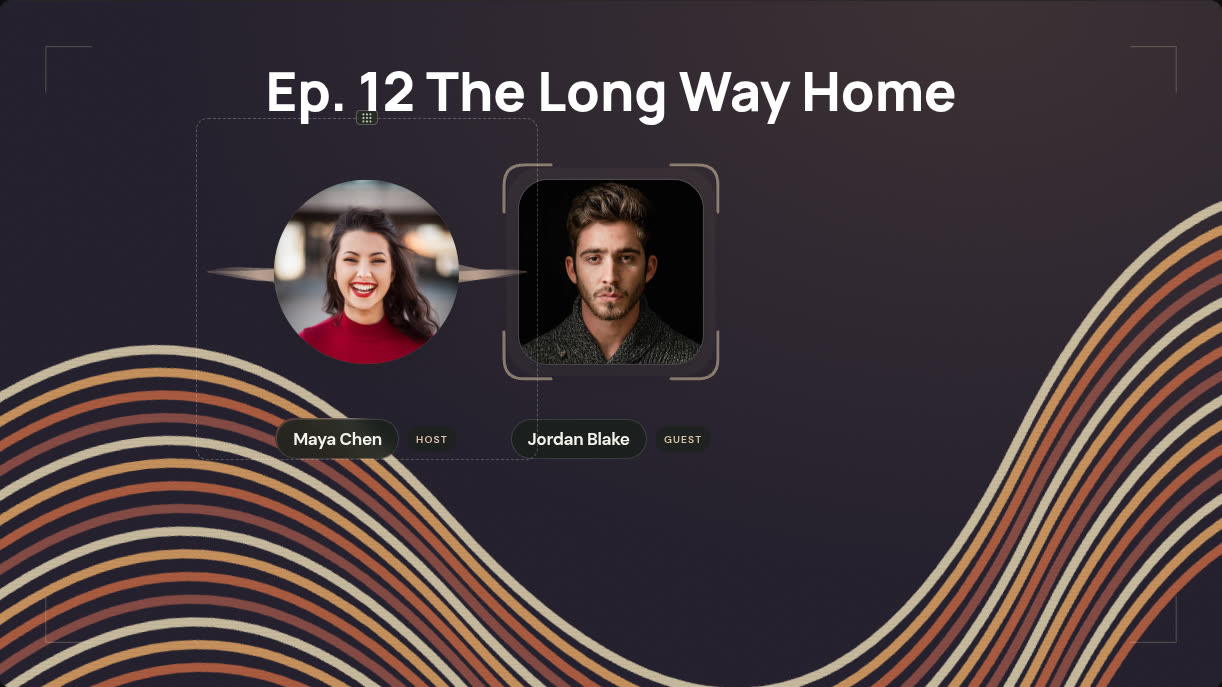
The motion is built for speech, not music. When a host starts talking, their profile eases in; while they talk, it follows the energy of their voice; when they stop, it settles back to a calm idle. Two people talking over each other both light up. Silence looks like silence. It reads the way a real conversation feels, which is exactly why it works at a glance in a feed.
Drag speakers anywhere on the stage, resize them, or use the arrow keys for precise placement. Names and roles sit in captions under each portrait, so a first-time viewer always knows who is speaking.
Set the scene
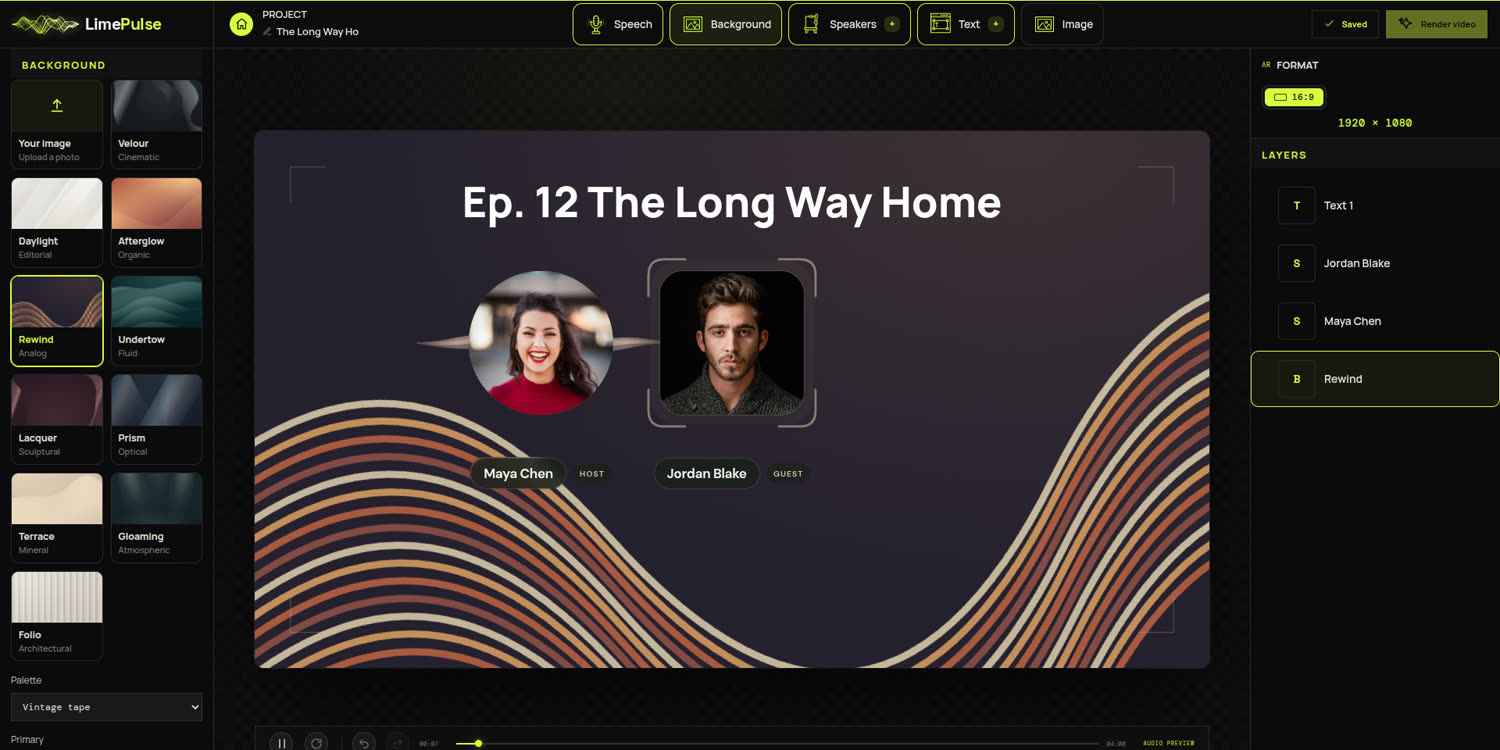
Ten animated backgrounds, each with a palette, a motion speed and an intensity you can tune: cinematic folds, editorial daylight, warm analog waves, sculpted arches, glass prisms, atmospheric beams. Every one loops seamlessly for an episode of any length.
Or use your own photo. The Your image card takes any picture and fits it to the frame, with a darken and a blur control so your hosts and captions stay readable over a busy backdrop. A show with a brand already has its look; the studio simply wears it.
Titles, logos and episode art
Add text for the episode title, the show name or a guest's handle, with a font picker, size, weight and alignment. Add images for your logo or a sponsor mark, with corner radius, shadow and reflection. Everything lives in a layers panel you can reorder, hide and duplicate, the same one the music visualizer and Canvas, our Spotify Canvas studio, use.
Preview with the real episode
Press play and the actual recording plays through the scene. Scrub to any minute, watch the right person animate at the right moment, and adjust anything while it runs. What you see is what the video will be: the preview and the export share the same design, frame for frame.
Export for YouTube, Spotify and everywhere else
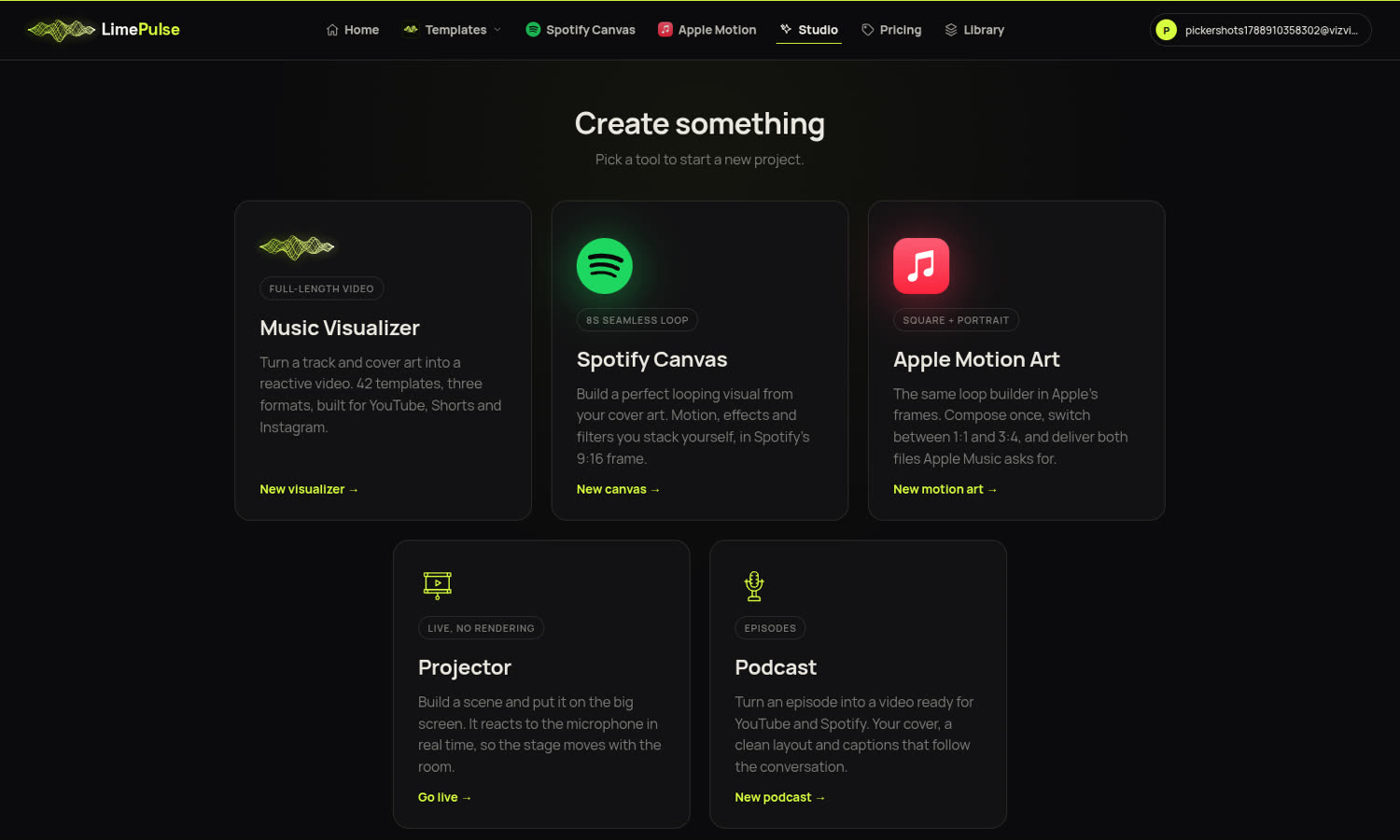
Render a 1080p widescreen video with the episode audio untouched. Upload it to YouTube as a video podcast, deliver it to Spotify as a video episode, or cut clips from it for Shorts, Reels and TikTok. If you also release music, the same account covers the music visualizer, Spotify Canvas loops and Apple Music motion art on one Creator plan.
Why a video podcast is worth it
- Discovery: YouTube recommends podcasts to viewers who have never heard of you; audio-only shows are invisible there
- Retention: a face and a moving scene hold attention longer than a static cover, especially on phones
- Clips: every episode becomes a source of short vertical clips for social, with the speaker already animated
- Brand: a consistent look across episodes makes a show recognizable in a feed before the title is read
- Accessibility: viewers can see who is speaking, which matters for guests and multi-host shows
Make your first episode
- Open Podcast and name the project
- Upload the episode audio; the studio detects the voices and seats the speakers
- Add a photo, a name and a role to each speaker, and pick their style
- Choose a background or upload your own image
- Add a title, press play to check it, then render
Questions people ask
- Do I need separate audio tracks per host? No. One mixed file is enough; the voices are told apart from the mix.
- What if two people talk at once? Both speakers animate during the overlap. Nothing is forced to a single voice.
- How many speakers? Up to three per episode. If a fourth voice is heard, the studio tells you instead of guessing.
- Does it work on interviews recorded remotely? Yes. Any recording where the voices are audible works, including phone-quality and compressed MP3.
- Can I reuse the setup for the next episode? Yes. Save the project, swap the audio, and the speakers, scene and titles carry over.
Start a new podcast project and hear your show become a video. If you make music too, the lyric video guide and the YouTube upload format guide are the next reads.